Google Calendar Time Blocking: Set Up in 60 Seconds
Google Calendar Time Blocking: Set Up in 60 Seconds

Yes, Google Calendar supports time blocking well enough to run your entire day from it. To create your first block right now: open Google Calendar, click an empty slot, type a title like "Deep work," set your start and end times, change the status to Busy, and hit Save. That's it. You have a time block.
Three things to decide before you build more:
- Event vs. Task vs. Focus Time: Use Events for any block you want to show as Busy to others. Use Tasks (added to Google Calendar in late 2025) for work items you want synced with Google Tasks. Use Focus Time only if you have a Google Workspace account and want meetings auto-declined.
- Free vs. Workspace: Focus Time and auto-decline are Workspace-only features. Free Google accounts get Events, Tasks, and Reminders, which cover most use cases.
- Start with two blocks, not twenty. One deep-work block and one admin block are a complete system for day one.
Key Takeaways
Google Calendar time blocking works best when you protect peak hours first, build recurring skeleton blocks, and review weekly rather than rebuilding from scratch each time.
| Point | Details |
|---|---|
| — | Create an event, set status to Busy, add a one-sentence outcome to the description, and save. |
| Protect peak hours first | Lock your highest-energy window before anything else lands on the calendar. |
| Use the right block type | Events for visibility, Tasks for to-do tracking, Focus Time for auto-decline on Workspace accounts. |
| Build recurring skeletons | Set planning, deep-work, and admin blocks to recur so you never rebuild from scratch each week. |
| Meetcrew for verification | Meetcrew connects to Google Calendar and verifies task completion with real integration data, closing the gap between planned blocks and actual output. |
Table of Contents
- How to set up Google Calendar time blocking on desktop and mobile
- Events, Tasks, Focus Time, or Reminders: which one should you use?
- Make time blocking repeatable with templates, recurring blocks, and color-coding
- Copyable daily and weekly sample schedules
- Advanced features: Focus Time, Google Tasks, and useful integrations
- Common mistakes people make and how to fix them
- Where Google Calendar struggles and when a dedicated planner helps
- A 7-day starter plan to build the habit
- When Meetcrew makes manual calendar upkeep unnecessary
- My take on where calendar blocking actually breaks down
- Sources
How to set up Google Calendar time blocking on desktop and mobile
Desktop setup (step by step)
- Go to Google Calendar and switch to Week view so you can see your full day at a glance.
- Click an empty time slot. A quick-create popup appears.
- Click More options to open the full event editor.
- Set a clear title that names the outcome, not just the category. "Write Q2 report intro" beats "Work."
- Set your start and end times. Be specific: 9:00 AM to 10:30 AM, not "morning."
- Under Status, select Busy. This signals to anyone viewing your calendar that you are unavailable.
- In the Description field, write one sentence: what you expect to have done when this block ends. "Draft 300 words of the intro section" is enough.
- Choose which calendar to add it to. If you have created a dedicated "Time Blocks" calendar (recommended below), select that.
- Pick a color. Consistent color-coding by block type makes your week scannable in seconds.
- Click Save.
Mobile setup (iOS and Android)
The flow is nearly identical on the Google Calendar app. Tap the + button in the bottom-right corner, select Event, fill in the title and times, set status to Busy, and save. For task-based blocks, tap + and select Task instead. The task will sync automatically to Google Tasks.
Quick hacks worth knowing:
- Drag to resize: On desktop, grab the bottom edge of any event and drag it to extend or shorten the block without reopening the editor.
- Keyboard shortcut: Press C anywhere in Google Calendar to open a new event instantly.
- Duplicate a block: Right-click any event and choose Duplicate to copy it to another day without rebuilding it from scratch.
- Quick-create from an empty slot: On mobile, long-press an empty time slot to create an event at that exact time.
Pro Tip: Create a separate calendar called "Time Blocks" inside Google Calendar (Settings → Add other calendars → Create new calendar). You can toggle its visibility on and off, share it selectively, and keep your time blocks visually distinct from meetings and personal events. Collaborators see you as Busy without seeing the block's details.
Events, Tasks, Focus Time, or Reminders: which one should you use?
This is where most people make their first mistake. They use Events for everything, then wonder why their task list and calendar never feel connected.
How to choose by situation:
- Deep creative work (writing, coding, designing): Use an Event set to Busy, or Focus Time if you have Workspace. Both protect the slot visually. Focus Time goes further by automatically declining meetings and muting Google Chat for the duration.
- Short admin batching (email, invoices, quick replies): Use an Event or a Task block. Tasks are better here because they stay in your Google Tasks list and check off when done.
- Hard blocks that cannot move: Use Focus Time (Workspace) or an Event set to Out of Office. Both send automatic declines to anyone trying to schedule over you.
- Personal time you want private: Create an Event on a separate personal calendar, set visibility to Private, and set status to Busy. Others see you as unavailable but cannot read the title.
By reader profile:
- Solo contributor or freelancer: Events + Tasks covers everything. Add Focus Time if you upgrade to Workspace.
- Manager with a packed meeting schedule: Focus Time is worth the Workspace cost alone. Set it for your two most critical work blocks each day and let the auto-decline do the protecting.
- Student: Events with color-coding by subject. Tasks for assignment deadlines. No Workspace needed.
Make time blocking repeatable with templates, recurring blocks, and color-coding
One-off blocks are fragile. The system only holds when your core blocks rebuild themselves each week without you touching them.
Setting up recurring blocks:
Open any event, click More options, scroll to the date field, and click the recurrence dropdown. The most useful patterns:
- Every weekday (Mon–Fri): For daily deep-work or morning-planning blocks.
- Weekly on specific days: Monday strategy, Wednesday execution, Friday review.
- Custom: Every Tuesday and Thursday, for example, if those are your lowest-meeting days.
When you edit a recurring block later, Google Calendar asks whether to change just this event, this and following events, or all events. Choose carefully. "This and following" is usually the right call when your schedule shifts.
Color-coding that actually works:
Pick three colors maximum and assign them by block type, not by project. More than three colors and the visual map loses meaning fast.
- Blue: Deep work / focus blocks
- Green: Admin, email, and shallow tasks
- Red or orange: Meetings and calls (so they stand out as interruptions)
A reusable template you can copy today:
Title: Deep work: [project name] Duration: 90 minutes Status: Busy Visibility: Private (or Default) Description: Goal for this block: [one sentence]. Done when: [specific output]. Calendar: Time Blocks Color: Blue Buffer after: 15-minute gap before next event
Pro Tip: Set up three recurring skeleton blocks every week: a 30-minute Monday planning block, a 90-minute daily deep-work block (weekdays), and a 30-minute Friday review block. These three alone give you a repeatable weekly structure without rebuilding from scratch each Sunday night.
Copyable daily and weekly sample schedules
These three templates are designed to be dropped directly into Google Calendar. Adjust the times to match your own peak-energy hours.
Template A: Two-block daily starter (best for beginners)
Start here. Two blocks, two buffers, and the rest of your day stays flexible. Once this feels natural, add a third block.
Template B: Peak-hours deep work + afternoon admin (knowledge workers)
The key move here is locking the 8:00–10:00 AM window before anyone can schedule a meeting into it. Set it as Busy or Focus Time immediately.
Template C: Day-themed weekly layout
| Day | Theme | Core block | Duration |
|---|---|---|---|
| Monday | Strategy + planning | Weekly plan + goal review | 30 minutes AM |
| Tuesday | Deep execution | Focused project work | 2 × 90 min |
| Wednesday | Collaboration | Meetings + team sync | Open AM |
| Thursday | Deep execution | Focused project work | 2 × 90 min |
| Friday | Review + admin | Weekly review + email | 30 minutes PM |
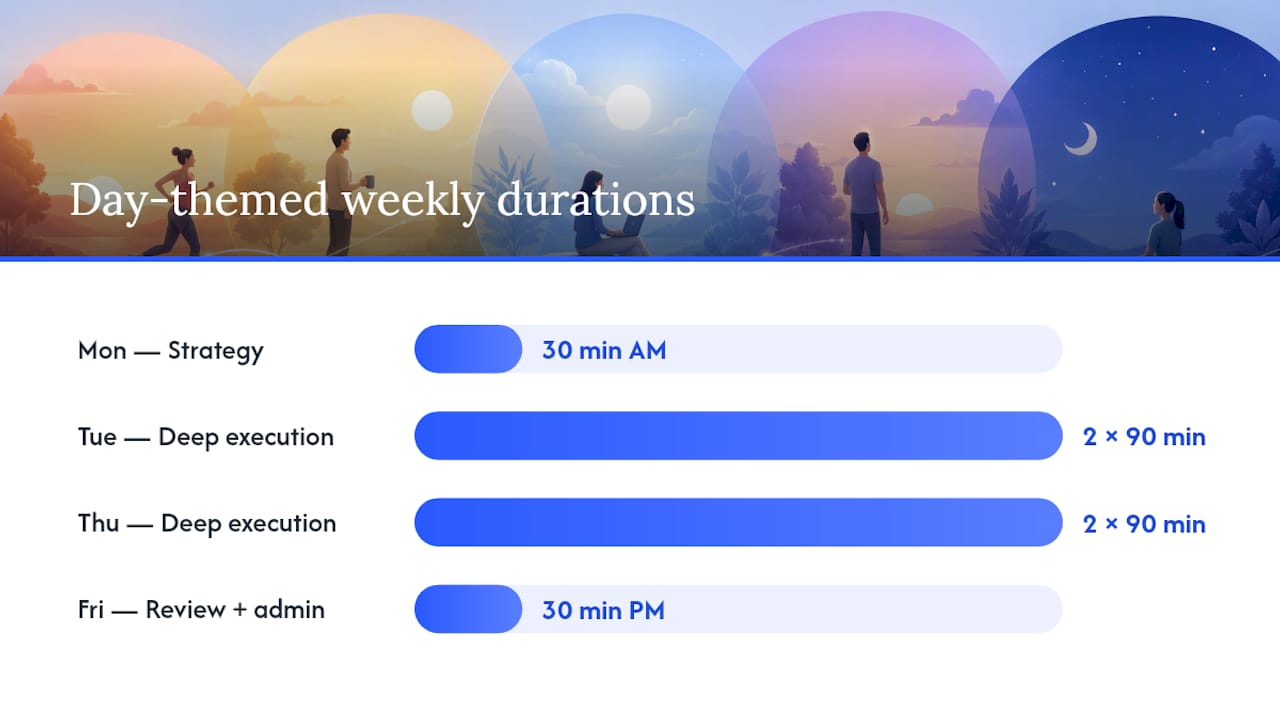
Day-theming works because it removes the daily decision of what to work on. Tuesday and Thursday are execution days by default. You stop negotiating with yourself.
Advanced features: Focus Time, Google Tasks, and useful integrations
Focus Time in Google Workspace
Focus Time is the most powerful block type Google Calendar offers, and it is locked behind a Workspace subscription. When you create a Focus Time event, you can configure it to automatically decline any meeting invitation that overlaps with it and mute Google Chat notifications for the entire duration. That combination means your block is protected by the calendar itself, not just by your own willpower.

To set it up: create a new event, click the event type dropdown (where it says "Event"), and select Focus time. You will see options to configure auto-decline and a custom decline message. Set the decline message to something like "I'm in a focus block until [time]. Happy to connect after."
Google Tasks integration
Google Calendar's late-2025 update made task-based blocking significantly more useful. When you create a Task block by selecting an empty slot and choosing Task, it appears both on your calendar and in your Google Tasks list. Check it off in Tasks and it marks complete on the calendar too. For anyone who runs a task list alongside a calendar, this closes the gap between "what I planned to do" and "what I actually did."
Protecting blocks with Do Not Disturb and notifications
Inside each event, you can set custom notifications: a 5-minute reminder to wrap up whatever you were doing before the block starts, and a second reminder at the block's start time. On Android, Google Calendar integrates with Do Not Disturb settings so your phone goes quiet automatically when a Focus Time block begins.
Useful integrations to know:
- Automation tools (like Zapier or Make): Connect Google Calendar to your task manager, note-taking app, or project tool so that creating a block can trigger actions elsewhere, like creating a linked document or logging time.
- Meetcrew's Google Calendar integration: Meetcrew connects directly to Google Calendar to verify which blocks were completed, pulling real data rather than relying on self-reporting.
- Browser extension: Meetcrew's browser extension lets you log task completions with a screenshot or connector data without leaving your current tab.
Pro Tip: Turn off all Google Calendar email notifications for time blocks. The only notifications worth keeping are the 5-minute pre-block reminder and, for Focus Time, the auto-decline confirmation. Everything else is noise that interrupts the blocks you just worked to protect.
Common mistakes people make and how to fix them
Most time-blocking systems fail in the first two weeks. The reasons are almost always the same.
Vague block titles. A block called "Work" gives you nothing to start on when the time arrives. The fix: write the intended outcome in the event description before you save the block. "Write the first draft of the pricing page" is a block you can start immediately. "Work" is not. Intent-labeled blocks are also easier to reschedule because you know exactly what you are moving.
Over-scheduling every minute. Filling every hour of the day with blocks feels productive in the planning phase and exhausting by Tuesday. Start with two or three blocks per day and leave the rest of the calendar open. Add more blocks only after the first ones feel automatic.
No buffers between blocks. Back-to-back blocks create a domino effect: one overrun and the rest of the day collapses. Reserve short gaps (10–15 minutes) between major blocks. These absorb overruns, give you a moment to transition mentally, and keep the schedule from feeling like a treadmill.
Letting meetings override blocks. This is the most common failure mode. Someone sends a meeting invite, it lands on your deep-work block, and you accept it because declining feels awkward. The fix: set your most important blocks to Busy or use Focus Time so the auto-decline handles it for you. For blocks that do get overridden, reschedule the block the same day rather than discarding it. A moved block still happens. A deleted one does not.
Rebuilding the schedule from scratch every week. If you are manually recreating the same blocks every Sunday, you will eventually stop doing it. Recurring events and skeleton blocks solve this. Set them once and only adjust when something genuinely changes.
Where Google Calendar struggles and when a dedicated planner helps
Google Calendar is a strong time-blocking tool for most people. But it has real limits, and knowing them saves you from blaming yourself when the system breaks down.
Honest limitations:
- Manual upkeep is real. Every time a meeting moves, you have to manually drag or reschedule the blocks around it. On a day with three rescheduled meetings, that is a lot of calendar maintenance.
- No proof of completion. Google Calendar has no way to verify that you actually did the work in a block. It shows what you planned, not what happened.
- Rescheduling load compounds. The more blocks you run, the more maintenance each schedule change creates. Founders and team leads with dense calendars often spend 20–30 minutes a day just keeping the calendar current.
- Limited accountability feedback. There is no end-of-day summary, no streak, and no signal that tells you whether your blocking habit is improving or slipping.
Signs you have outgrown manual calendar blocking:
- You reschedule blocks almost every day and it feels like a second job.
- You want to know, at the end of the day, which planned blocks actually happened.
- Your team needs to see verified task completion, not just a calendar entry.
- You are losing track of tasks that slip between blocks and never get rescheduled.
For readers hitting those signals, an automated planner like Meetcrew adds what Google Calendar cannot: it locks your day each morning with a prioritized task list, integrates with Google Calendar to verify which blocks were completed, and gives you real-time accountability feedback without manual logging. The time blocking method stays the same; the upkeep drops significantly.
The cost-benefit question is simple: if you spend more than 15 minutes a day maintaining your calendar blocks, or if you regularly finish the day unsure whether you hit your priorities, the manual approach is costing you more than an automated tool would.
A 7-day starter plan to build the habit
The hardest part of time blocking is not the setup. It is the second week, when the novelty wears off and the blocks start getting skipped. This plan is designed to get you past that point.
- Day 1: Open Google Calendar and create exactly two blocks for tomorrow: one 90-minute deep-work block during your peak hours and one 45-minute admin block in the afternoon. Set both to Busy. Do not add anything else yet.
- Day 2: Open both blocks and add a one-sentence outcome to each description. "Finish the first draft of X" or "Clear inbox to zero." Set the deep-work block as recurring on weekdays.
- Day 3: Add a 15-minute buffer block after each of your two main blocks. Name them "Buffer / transition." Set them to Free so they do not show as Busy to others.
- Day 4: If you have a Workspace account, convert your deep-work block to Focus Time and enable auto-decline. If you are on a free account, right-click the block and set it to Out of Office for one day to see how it feels to have meetings auto-declined.
- Day 5: Add a third block: a 30-minute planning block at the start of your day. Use it to review your blocks for the day and adjust anything that has shifted. Set it as recurring on weekdays.
- Day 6: Run a short weekly review. Look at the past five days: which blocks happened, which got skipped, and which were moved. Adjust your recurring blocks based on what you learned. This review should take no more than 15 minutes.
- Day 7: Lock your skeleton blocks for next week. Confirm that your deep-work, admin, planning, and buffer blocks are all set to recur. Add one new block type you did not have last week, whether that is a Pomodoro-style 25-minute sprint block, a learning block, or a team-sync block.
What to track as you go:
- Did the block happen at the scheduled time?
- Did you start work immediately when the block began, or did you spend the first 10 minutes deciding what to do?
- Which block type (Event, Task, Focus Time) felt most natural for each category of work?
After seven days, you will have a working skeleton schedule, a weekly review habit, and enough data to know which blocks to keep and which to adjust.
What teams found useful
Teams that adopt calendar time blocking consistently report a few specific changes: fewer tasks slipping between meetings, clearer handoffs because everyone can see when a colleague is in a protected block, and more intentional work because the act of naming a block forces a decision about what actually matters that day.
One norm worth establishing early: share your "Time Blocks" calendar with your team set to show-as-Busy but with event details hidden. That way, colleagues know not to schedule over your blocks without seeing what you are working on. Keep personal blocks on a separate calendar set to Private.
The practical setup guides that cover team use consistently recommend a shared calendar etiquette document: one page that explains what a Busy block means on your team, how much notice is needed to override one, and which blocks are truly non-negotiable. Without that agreement, the most carefully built calendar system breaks down the first time a manager schedules a "quick sync" over someone's deep-work block.
When Meetcrew makes manual calendar upkeep unnecessary
If you have hit the upgrade signals from the limitations section, Google Calendar alone is doing half the job. Meetcrew handles the other half: each morning, you lock in your three to ten priority tasks, and Meetcrew connects to your Google Calendar to verify which ones actually happened, using real integration data from GitHub, Stripe, Gmail, and Vercel rather than self-reported checkboxes. At the end of the day, you get a clear accountability summary without touching the calendar manually.
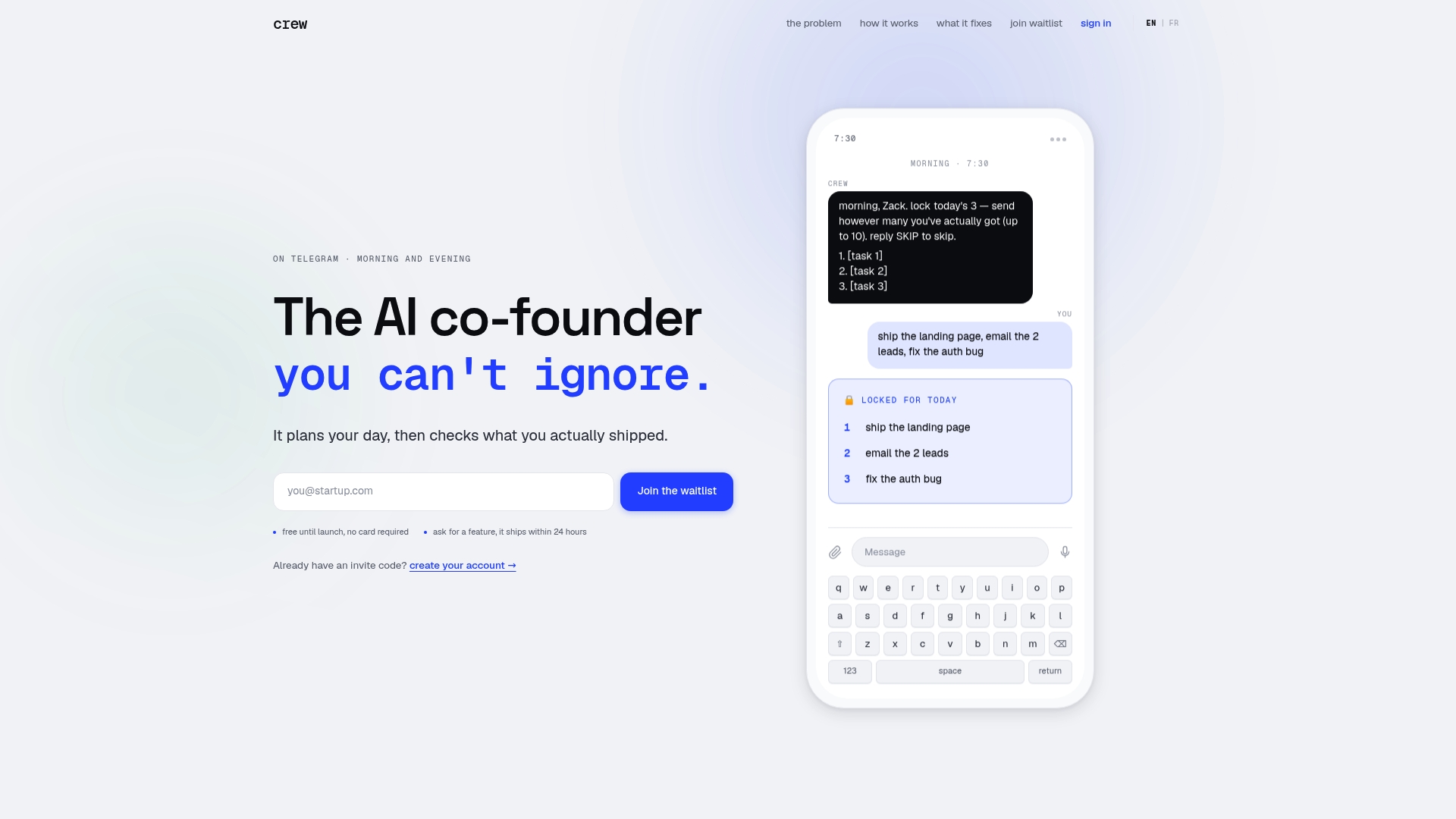
The difference from a pure calendar setup is verification and consistency. Your blocks still live in Google Calendar. Meetcrew just confirms whether the work inside them happened and keeps a streak so you can see your follow-through trend over time. For founders and small teams who need that layer of accountability without hiring a project manager, it closes the gap between planning and execution. Crew is invite-only during early access. Once you are in, you connect Google Calendar in the onboarding flow.
My take on where calendar blocking actually breaks down
The conventional advice is to block your calendar and protect your blocks. That is correct as far as it goes. What most guides skip is the maintenance problem: a well-blocked calendar on Monday morning looks nothing like the calendar on Thursday afternoon after three rescheduled meetings and two urgent requests. The blocks are still there, technically. But they have been pushed, compressed, or quietly abandoned.
The real skill in time blocking is not the initial setup. It is the daily rescheduling decision: when a block gets displaced, do you move it or lose it? Most people lose it. The block disappears into the calendar history, the work does not happen, and the system gradually erodes until the calendar is just a meeting log again, which is exactly what gHacks described as the default state before time blocking.
The fix is not more discipline. It is lower friction. Recurring skeleton blocks reduce the rebuilding effort. Focus Time auto-decline reduces the override rate. A weekly 15-minute review catches the drift before it becomes a full collapse. And for anyone whose schedule changes fast enough that manual maintenance becomes a daily chore, a tool that verifies completion and flags slippage is not a luxury. It is the only way the system stays honest.
Sources
The sources below back the specific claims and steps in this guide. Each one is worth bookmarking for the follow-up detail it covers.
- Block off time to work on a task in Calendar
- Focus time in Calendar (Google Workspace support)
- Time Blocking in Google Calendar is The One Feature That Keeps Daily Schedules Under Control - gHacks Tech News
- How to Set Up Google Calendar for Time Blocking
- Google Workspace features